 Meteor
 Solar wind
 Wormhole
 Ice geyser
 Cabin fire
 Hungry astronaut
 Slingshot planet
 Fire meteor
 Aurora
 Black hole
 Solar eclipse
 Pulsar
 Radiation belt
 Dark nebula
 Io volcano
 UFO
 Force field
 Star nursery
 Neutron star
 Magnetar
 Hull breach
 Ice comet
 Supernova
 Solar flare
 Asteroid belt
 Binary star
 Gravitational lens
 Space debris
 Time dilation zone
 Rogue planet
 Gamma-ray burst
 Dark matter halo
 Dyson sphere
Screens and settings
The map, the level card, your profile, Settings and sound: where everything is and what it does.
On this page5 parts
The map, level card and buttons
- Play, the big yellow button in the middle of the tab bar: plays your next level. The goal bar just above it names that level and your next goal, with a progress bar (levels to the next feature, or stars to the next star chest). Tap it to open the level card.
- The map shows each star's name in large type, and the star you play next is drawn bigger. Tap a star: the level card's Star profile tells you what kind of star it is and its story.
- Top bar: your avatar with your level (profile, language, My stats), your stars (tap for the Star Atlas), your gems with + (tap for the Shop) and ⚙ Settings.
- Left side: Rewards (it shows your daily-gift day) and Free shots (how many you have saved). A red badge means something is waiting to collect.
- Tab bar at the bottom: Map (back to your next star), Challenges, Play, Shop and Profile.
- Boosts on the level card: +10 balls for ◆ 10 or +3 shots for ◆ 25, before you start. From level 151 there are also four shot boosts: +20 balls, power balls, a piercing ball and a bomb ball.
- Hazards on this level: the hazards row on the level card shows how many there are. Tap it for the list and the stages each one is on, then tap a hazard to customise it.
- ⓘ and the hazards row: on the level card, ⓘ under the star's name opens its Star profile, and the hazards row opens the list of hazards on the level. The 🏆 button next to Play opens the level's leaderboard.
The level card, step by step
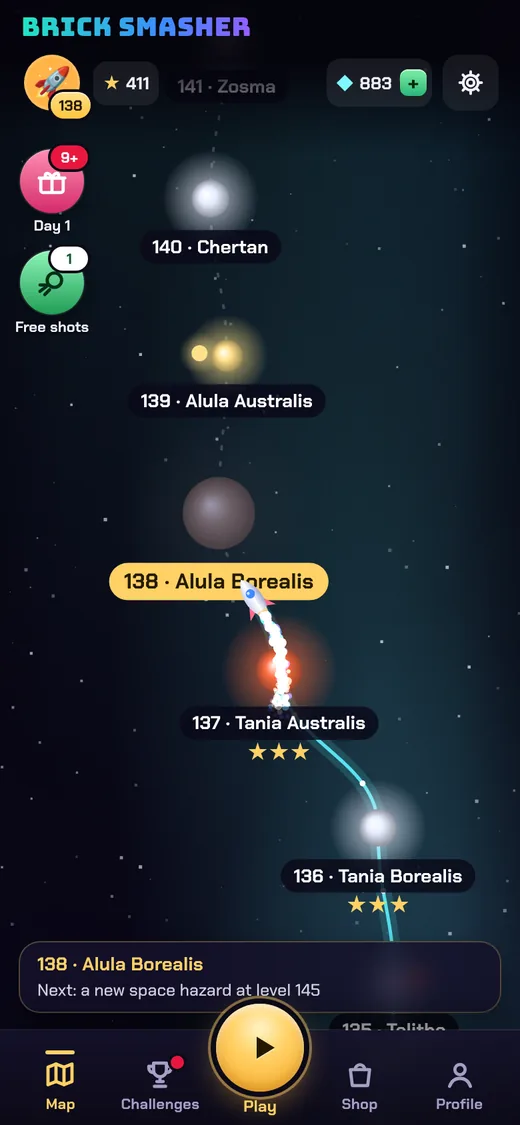
Tap a star on the map, or the goal bar above Play, to open its level card. 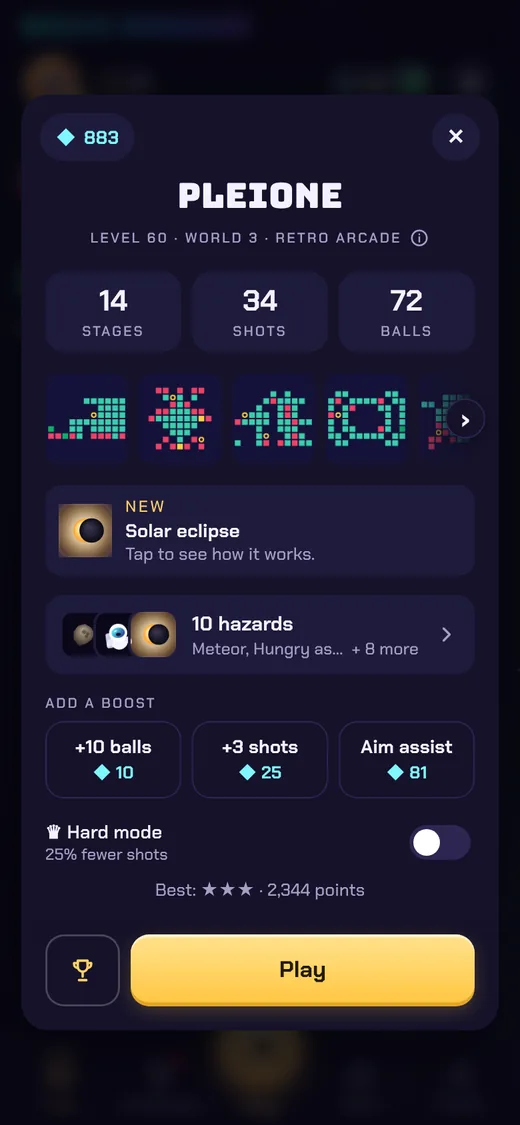
The level card: stages, shots and balls, the stage pictures, the hazards row, boosts and Play. ⓘ opens the star's story. 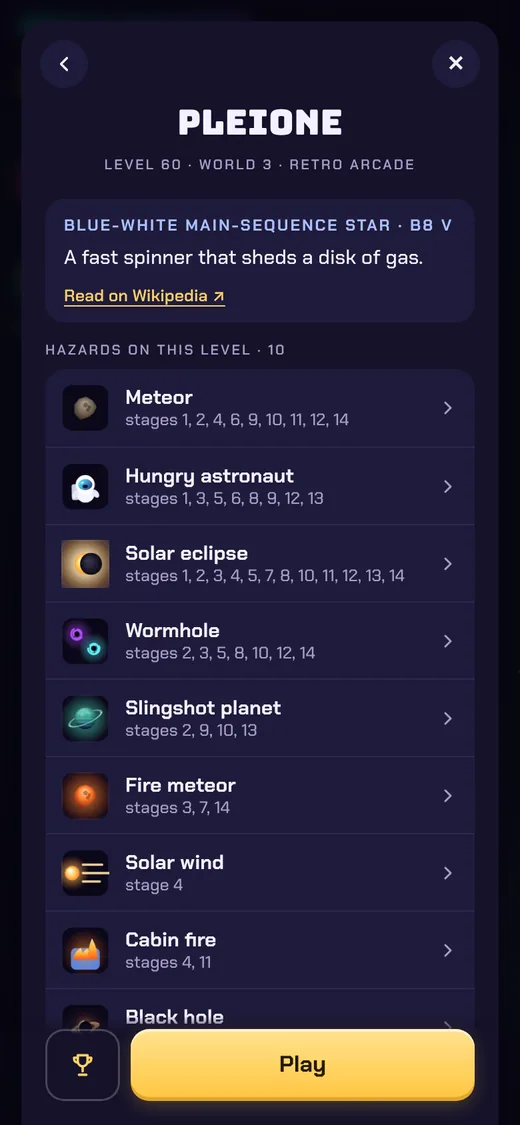
Tap the hazards row (or ⓘ): the star's story and every hazard on the level, with the stages it's on. Tap a hazard to customise it. 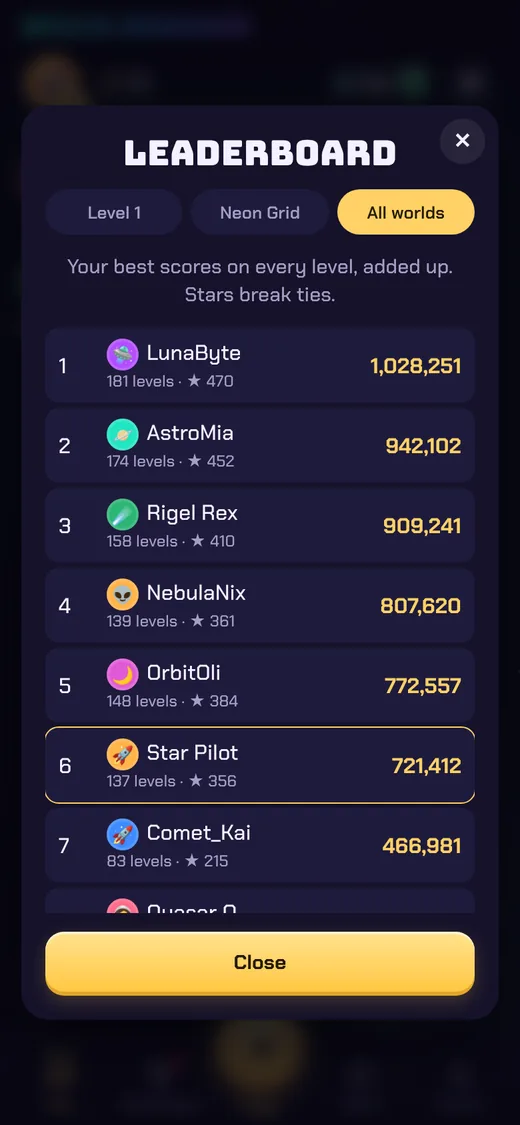
The 🏆 button next to Play opens the level's leaderboard; its tabs switch to the world and all worlds.
Features open as you play
A new player starts with the map and Play. The rest opens as you go, and each time something opens, a one-time New! spotlight shows where it is. A locked tab shows 🔒 and tells you how many levels to go.
| Feature | Opens |
|---|---|
| Shop | after your first cleared level, or as soon as you have gems |
| Challenges | after level 3 |
| Live race and Duel | after level 5 (a friend's race or duel link works at any level) |
| Ranked divisions | after level 25 |
| Ghost race | after level 50 |
| Hazard duel | after level 75 |
| Team boss | after level 100 |
| Knockout cup | after level 150 |
| Level Creator | after level 350 |
Profile
Your profile is one page: your picture, name and numbers first, then the gem code, then your settings. Rarely used things (privacy, the spending limit, log out and deleting your account) are one tap back, under Account and privacy.
Where to find it Tab bar › Profile
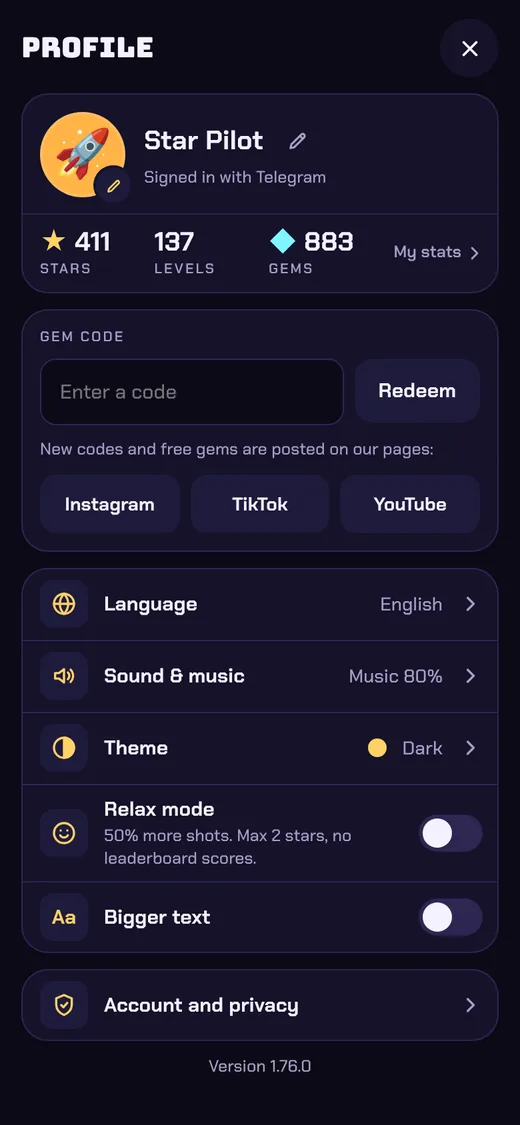
Your profile: your stars, levels and gems (tap them for My stats), the gem code with our pages, and your settings. 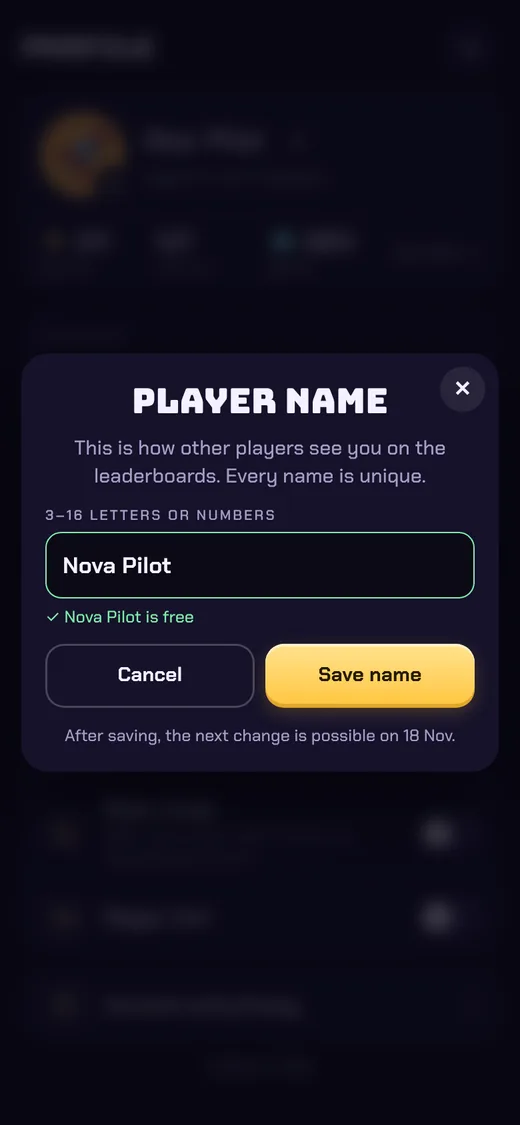
The pencil by your name opens Player name. The game checks the name as you type and offers free names if yours is taken. You can change it once a week. 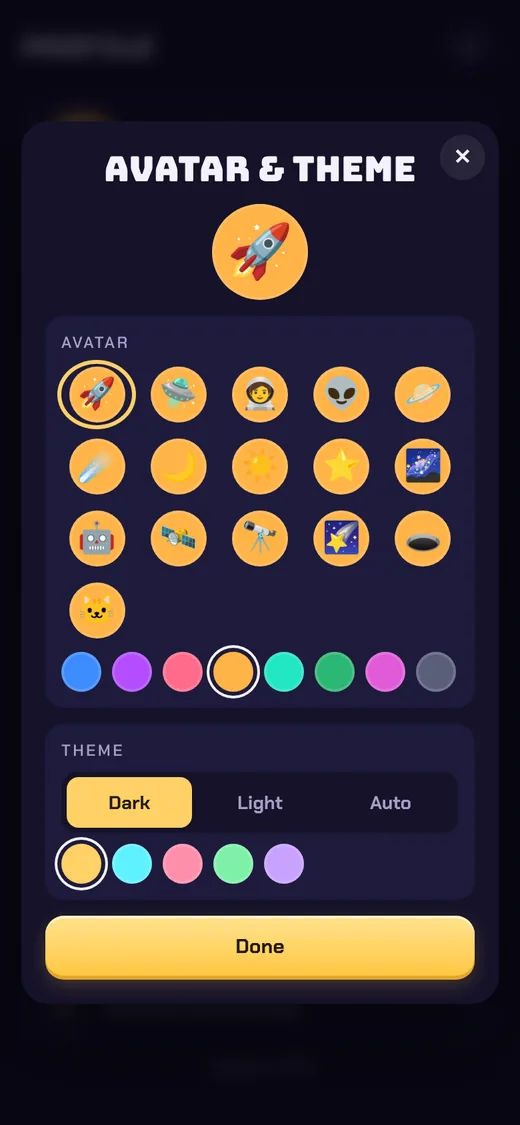
Your picture (or the Theme row) opens Avatar & theme: an avatar, its colour, dark, light or auto theme and an accent colour. 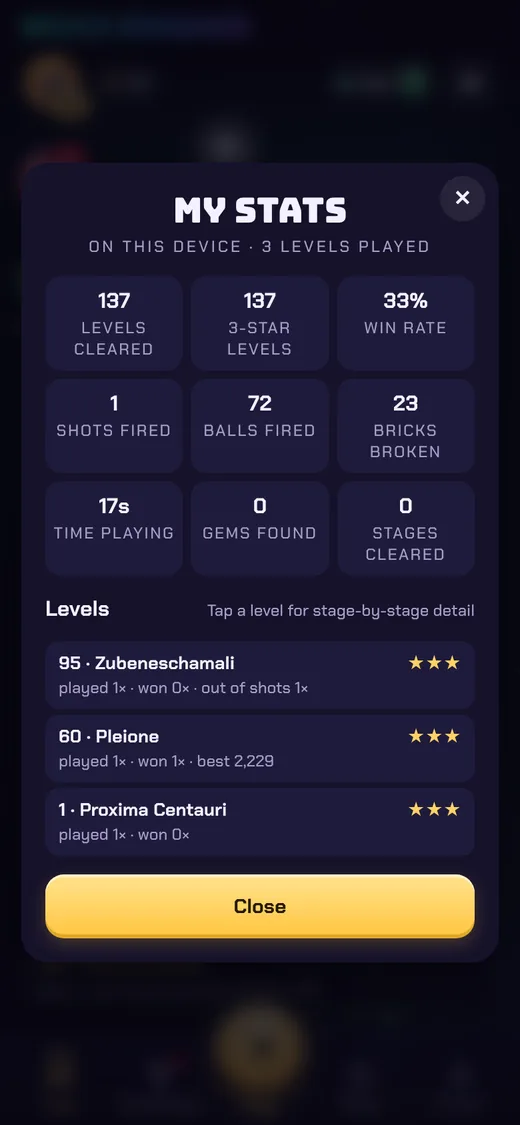
My stats: every level you've played, stage by stage. 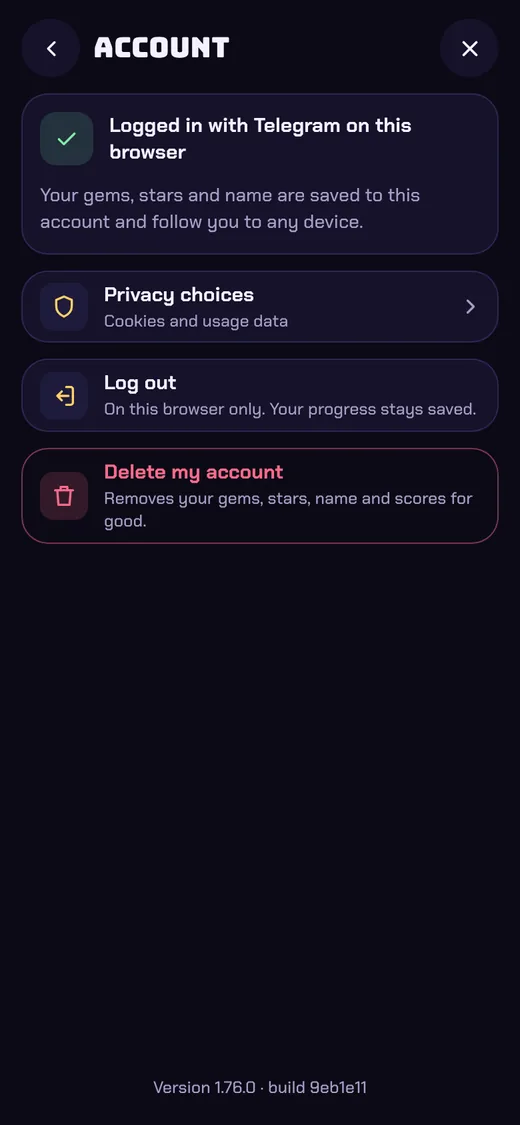
Account and privacy: how your progress is saved, privacy choices, the monthly spending limit (in Telegram), log out (in a browser) and Delete my account (tap it twice).
- Guests: in a browser, the top of the profile offers Log in with Telegram; in the phone apps, Sign in with Apple or Google. Logging in keeps your progress on every device, and gem codes need it.
- Gem codes: type the code and tap Redeem; the gems are added straight away. New codes are posted on our Instagram, TikTok and YouTube (the buttons are under the code box). The iPhone app has no gem codes.
Settings
Where to find it Map › ⚙ Settings
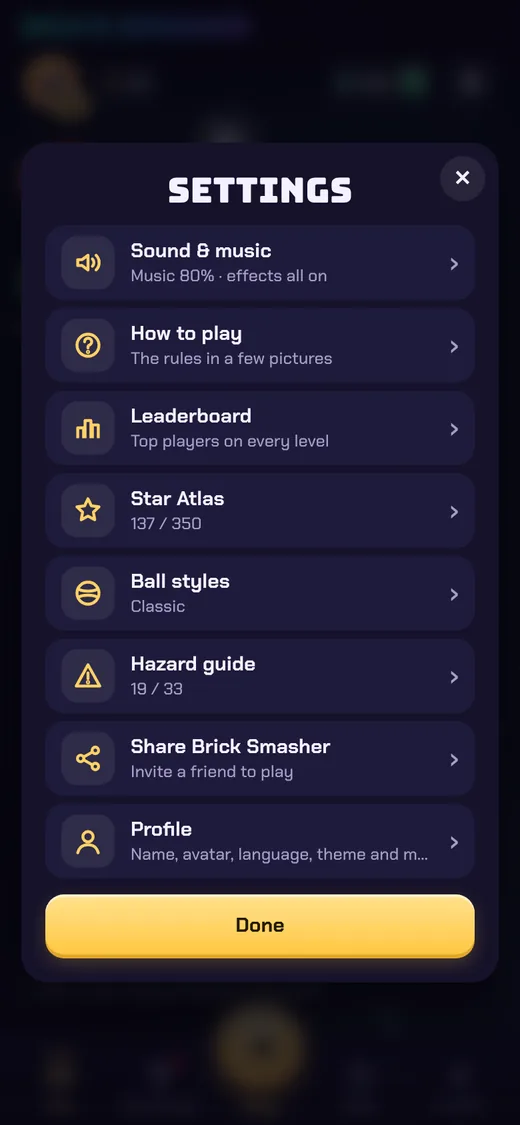
Settings (⚙ on the map): Sound & music, How to play, Leaderboard, Star Atlas, Ball styles, Hazard guide, Share Brick Smasher and Profile. 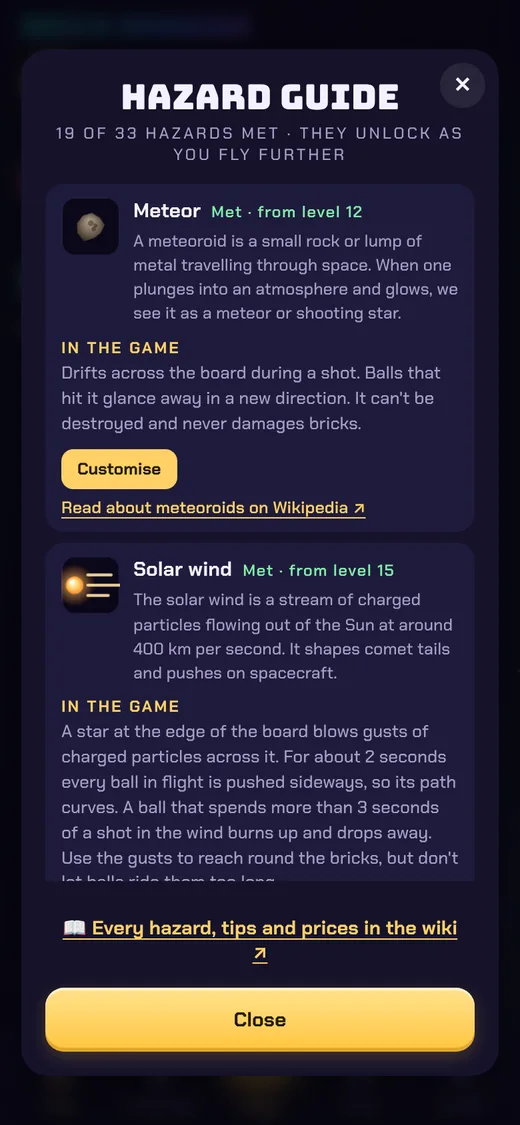
Hazard guide: every hazard you've met, how it works, and Customise. 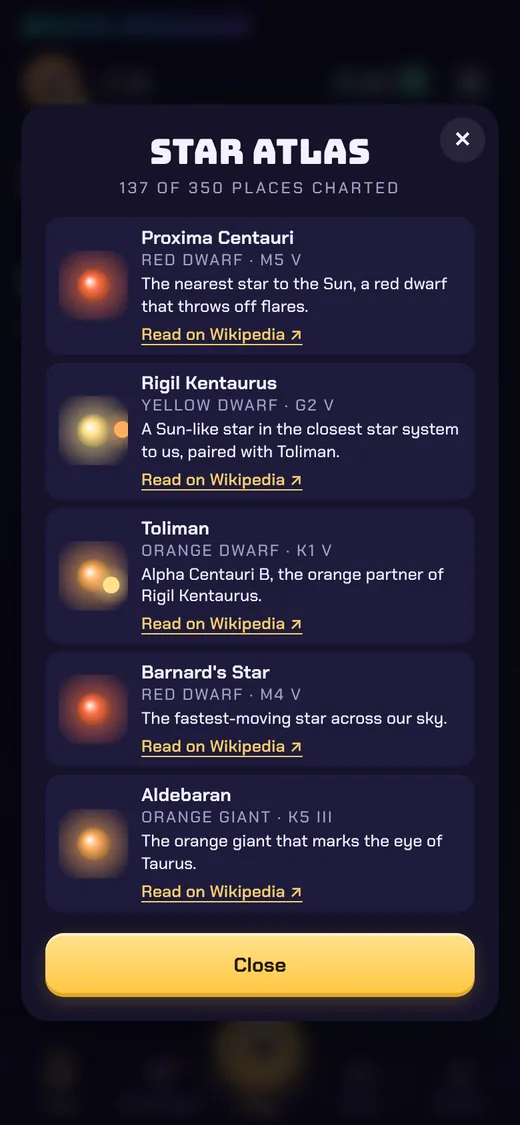
Star Atlas: every star you've visited, with its story. 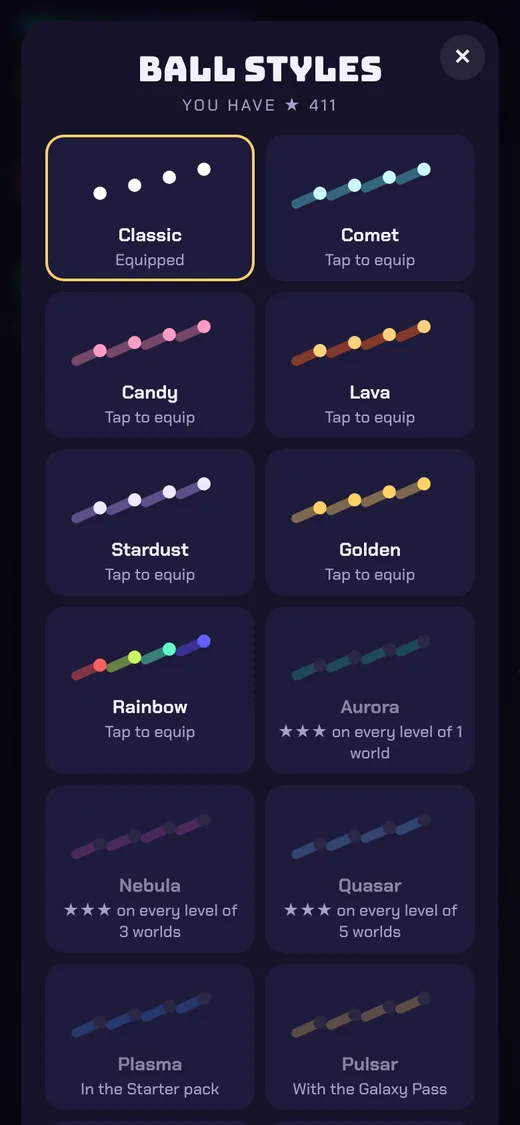
Ball styles: pick how your balls look. New styles open with stars.
Sound & music: mix your own
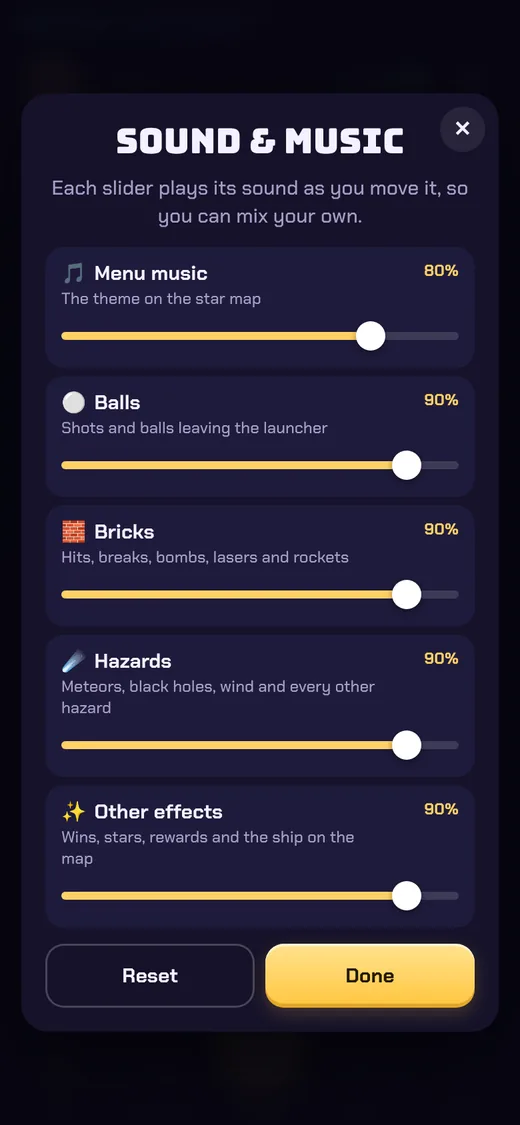
Open ⚙ Settings › Sound & music (also in your profile, and from the pause card). Five sliders, each with its own volume from off to 100%: Menu music (the theme on the star map), Balls (shots and balls leaving the launcher), Bricks (hits, breaks, bombs, lasers and rockets), Hazards (every space hazard) and Other effects (wins, stars, rewards and the ship on the map). Each slider plays its own sound as you move it, so you hear the mix while you set it. Reset puts them all back.
Settings worth knowing
- Relax mode (profile): 50% more shots on every level. Scores don't go on the leaderboards and levels give at most 2 stars.
- Hard mode (level card): once a world's boss is beaten, replay its levels with 25% fewer shots for a ♛ crown score. Hazard Tames and Twists are off in hard mode.
- Bigger text, light or dark theme and language (16 languages) are in your profile; Sound & music (a volume for menu music, balls, bricks, hazards and other effects) is in Settings (⚙) and your profile.